🐳 Mastering Docker: A Complete DevOps Guide with Real-World Troubleshooting
Learn Docker for DevOps, SRE, and Cloud Architects: Advanced Troubleshooting and Optimization for Enterprise Deployments

🌟 Introduction
What Makes This Different?
Real production scenarios — not toy examples
Root cause analysis — understand WHY things break
Debug workflows — systematic problem-solving
Performance data — actual benchmarks and metrics
Enterprise patterns — battle-tested architectures
Who Should Read This?
✅ DevOps Engineers building CI/CD pipelines
✅ SREs managing containerized services
✅ Developers deploying microservices
✅ System Administrators migrating to containers
✅ Students preparing for DevOps interviews
✅ Tech Leads designing scalable architectures
Prerequisites
Basic Linux command line knowledge
Understanding of networking concepts (IP, ports, DNS)
Familiarity with YAML syntax
A Linux machine or VM (Ubuntu 22.04+ recommended)
🐋 Docker Fundamentals
What is Docker? (The 5-Minute Explanation)
Docker is a containerization platform that packages applications with all their dependencies into standardized units called containers.
Think of it like this:
Traditional deployment: Your app depends on specific OS libraries, runtime versions, and system configurations. Move it to a different server?
Docker deployment: Your app lives in a self-contained box with everything it needs. Works on your laptop? It works in production.
Virtual Machines vs Containers
Key Differences:
| Feature | Virtual Machine | Container |
| Boot Time | 1-2 minutes | 1-2 seconds |
| Size | GBs (5-20 GB) | MBs (50-500 MB) |
| Resource Usage | Heavy | Lightweight |
| Isolation | Complete (separate kernel) | Process-level (shared kernel) |
| Portability | Limited | Excellent |

Docker Benefits in Production
🚀 Fast Deployment
Start 100 containers in seconds
Scale horizontally without VM overhead
📦 Consistency
"Works on my machine" → "Works everywhere"
Dev/staging/prod parity
💰 Resource Efficiency
10x more containers per server vs VMs
Lower cloud costs
🔄 Easy Rollbacks
Tag images with versions
Instant rollback to previous version
🔧 Microservices Ready
Each service in its own container
Independent scaling and updates
✨ Docker Architecture Deep Dive
High-Level Architecture
┌──────────────────────────────────────────────────────────┐
│                    Docker Client                         │
│              (docker CLI commands)                       │
└────────────────────┬─────────────────────────────────────┘
                     │ REST API
                     ▼
┌──────────────────────────────────────────────────────────┐
│                  Docker Daemon (dockerd)                 │
│  ┌────────────────────────────────────────────────────┐  │
│  │              containerd                            │  │
│  │  ┌──────────────────────────────────────────────┐  │  │
│  │  │           runc (container runtime)           │  │  │
│  │  └──────────────────────────────────────────────┘  │  │
│  └────────────────────────────────────────────────────┘  │
└──────────────────────────────────────────────────────────┘
                     │
        ┌────────────┼────────────┬─────────────┐
        ▼            ▼            ▼             ▼
    ┌────────┐  ┌────────┐  ┌────────┐    ┌─────────┐
    │ Images │  │Containers│ │Networks│    │ Volumes │
    └────────┘  └────────┘  └────────┘    └─────────┘
Core Components Explained
1. Docker Client
Command-line interface you interact with
Sends commands to Docker daemon via REST API
Can connect to remote daemons
# Client communicates with daemon
docker run nginx  # Client sends "run" command
2. Docker Daemon (dockerd)
Background service managing Docker objects
Listens for Docker API requests
Manages images, containers, networks, volumes
3. containerd
Industry-standard container runtime
Manages container lifecycle
Handles image transfer and storage
4. runc
Low-level container runtime
Creates and runs containers
Implements OCI (Open Container Initiative) specification
Docker Objects
Images
Read-only templates with instructions
Built from Dockerfile
Stored in layers (like Git commits)
Shared across containers
# List images
docker images

# Pull from registry
docker pull nginx:alpine

# Build from Dockerfile
docker build -t myapp:v1 .
Containers
Runnable instances of images
Isolated process with own filesystem
Can be started, stopped, deleted
# Run container
docker run -d --name web nginx

# List running containers
docker ps

# Stop container
docker stop web
Networks
Virtual networks connecting containers
DNS-based service discovery
Multiple network drivers (bridge, host, overlay)
Volumes
Persistent data storage
Lives outside container lifecycle
Shared between containers
🔄 Container Lifecycle Management
Container States
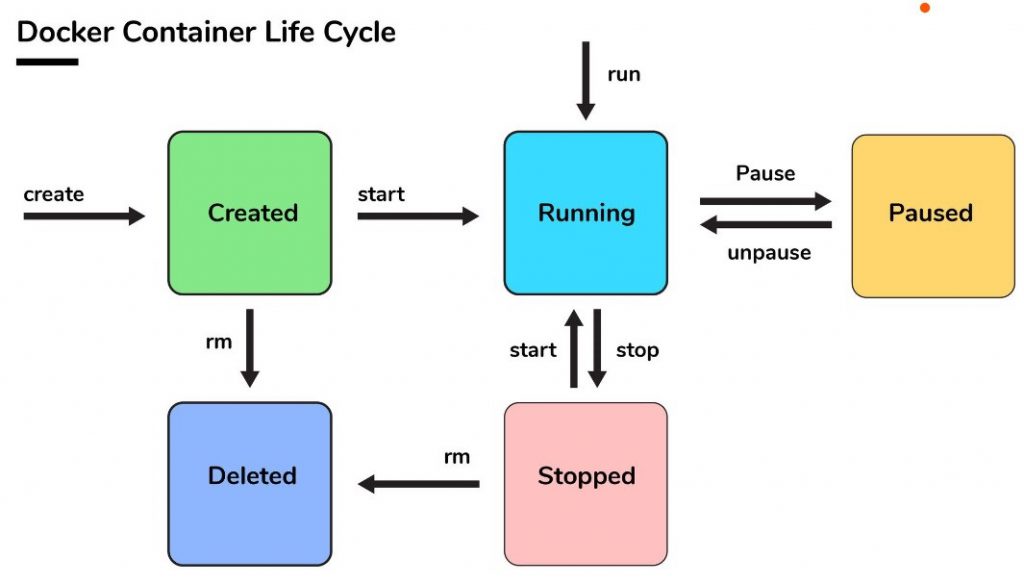
Managing Container Lifecycle
# Create without starting
docker create --name myapp nginx

# Start existing container
docker start myapp

# Run = Create + Start
docker run -d --name webapp nginx

# Pause running container (freezes all processes)
docker pause webapp

# Unpause
docker unpause webapp

# Stop gracefully (SIGTERM, 10s timeout, then SIGKILL)
docker stop webapp

# Kill immediately (SIGKILL)
docker kill webapp

# Remove stopped container
docker rm webapp

# Remove running container (force)
docker rm -f webapp

# Remove all stopped containers
docker container prune
Real-World Example: Zero-Downtime Deployment
# Step 1: Run old version
docker run -d --name app-v1 -p 8080:80 myapp:v1

# Step 2: Start new version on different port
docker run -d --name app-v2 -p 8081:80 myapp:v2

# Step 3: Test new version
curl http://localhost:8081/health

# Step 4: Switch traffic (update load balancer)
# Update NGINX/HAProxy to point to 8081

# Step 5: Gracefully stop old version
docker stop app-v1
docker rm app-v1

# Step 6: Rename new version
docker rename app-v2 app-v1

# Step 7: Update port
docker stop app-v1
docker rm app-v1
docker run -d --name app-v1 -p 8080:80 myapp:v2
🧩 Docker Networking (Production Grade)
Network Drivers
| Driver | Use Case | Scope |
| bridge | Single host, default | Local |
| host | No isolation, max performance | Local |
| overlay | Multi-host networking (Swarm) | Swarm |
| macvlan | Container appears as physical device | Local |
| none | No networking | Local |
Default Bridge Network (What NOT to Use)
# Creates default bridge network
docker run -d --name app1 nginx
docker run -d --name app2 alpine

#  PROBLEM: DNS doesn't work
docker exec app2 ping app1  # FAILS
docker exec app2 ping 172.17.0.2  # Works but IP changes
Why default bridge is bad:
No automatic DNS resolution
IP addresses change on restart
Limited network isolation
Custom Bridge Network (Production Standard)
# Create custom network
docker network create \
  --driver bridge \
  --subnet 172.20.0.0/16 \
  --gateway 172.20.0.1 \
  myapp-network

# Run containers on custom network
docker run -d \
  --name api \
  --network myapp-network \
  myapi:latest

docker run -d \
  --name database \
  --network myapp-network \
  postgres:15

# ✅ DNS works automatically
docker exec api ping database  # Works!
docker exec database ping api  # Works!
Real-World Networking Scenario
Problem: Microservices architecture with 5 services
Frontend → API Gateway → [Auth Service, User Service, Order Service] → Database
Solution:
# Create networks
docker network create frontend-net
docker network create backend-net
docker network create database-net

# Frontend (only on frontend network)
docker run -d \
  --name frontend \
  --network frontend-net \
  -p 80:80 \
  frontend:latest

# API Gateway (bridge between frontend and backend)
docker run -d \
  --name api-gateway \
  --network frontend-net \
  apigateway:latest

docker network connect backend-net api-gateway

# Backend services (only on backend network)
docker run -d --name auth-svc --network backend-net auth:latest
docker run -d --name user-svc --network backend-net user:latest
docker run -d --name order-svc --network backend-net order:latest

# Connect backend services to database network
docker network connect database-net auth-svc
docker network connect database-net user-svc
docker network connect database-net order-svc

# Database (only on database network)
docker run -d \
  --name postgres \
  --network database-net \
  -e POSTGRES_PASSWORD=secret \
  postgres:15
Security benefit: Frontend cannot directly access database!
Network Troubleshooting Commands
# List networks
docker network ls

# Inspect network (see connected containers)
docker network inspect myapp-network

# See container's network settings
docker inspect --format='{{json .NetworkSettings.Networks}}' container_name

# Test connectivity
docker exec container_name ping another_container
docker exec container_name nslookup another_container
docker exec container_name curl http://another_container:8080

# Check DNS resolution
docker exec container_name cat /etc/resolv.conf

# Network stats
docker stats --no-stream
Common Network Issues & Fixes
Issue 1: Cannot connect to other container
Symptom:
docker exec app1 ping app2
# ping: bad address 'app2'
Root Cause: Containers on different networks
Fix:
# Check networks
docker inspect app1 | grep NetworkMode
docker inspect app2 | grep NetworkMode

# Connect to same network
docker network create shared-net
docker network connect shared-net app1
docker network connect shared-net app2
Issue 2: Port already in use
Symptom:
docker run -p 8080:80 nginx
# Error: port is already allocated
Root Cause: Another process using port 8080
Fix:
# Find what's using the port
sudo lsof -i :8080
sudo netstat -tulpn | grep 8080

# Options:
# 1. Stop the other service
sudo systemctl stop other-service

# 2. Use different host port
docker run -p 8081:80 nginx

# 3. Use host network mode (no isolation)
docker run --network host nginx
Issue 3: Intermittent connection drops
Root Cause: Docker network MTU mismatch
Fix:
# Check host MTU
ip link show | grep mtu

# Create network with correct MTU
docker network create \
  --driver bridge \
  --opt com.docker.network.driver.mtu=1450 \
  custom-net
Advanced: Multi-Host Networking with Overlay
# On manager node
docker swarm init

# Create overlay network
docker network create \
  --driver overlay \
  --attachable \
  my-overlay

# Deploy service across hosts
docker service create \
  --name web \
  --network my-overlay \
  --replicas 3 \
  nginx

# Containers on different hosts can now communicate!
💾 Volume Management & Data Persistence
The Data Loss Problem
# Start database
docker run -d --name db postgres

# Write data
docker exec db psql -U postgres -c "CREATE DATABASE myapp;"

# Container crashes or gets deleted
docker stop db
docker rm db

# Start new container
docker run -d --name db postgres

#  DATA LOST! myapp database doesn't exist
Volume Types
1. Named Volumes (Recommended for Production)
# Create volume
docker volume create pgdata

# Use volume
docker run -d \
  --name postgres \
  --mount source=pgdata,target=/var/lib/postgresql/data \
  -e POSTGRES_PASSWORD=secret \
  postgres:15

# Or shorter syntax
docker run -d \
  --name postgres \
  -v pgdata:/var/lib/postgresql/data \
  -e POSTGRES_PASSWORD=secret \
  postgres:15

# Data persists even after container deletion!
docker stop postgres
docker rm postgres
docker run -d --name postgres -v pgdata:/var/lib/postgresql/data postgres:15
# ✅ Data still there!
Advantages:
Docker manages storage location
Works on all platforms
Easy backup/restore
Can be shared between containers
2. Bind Mounts (Development)
# Mount host directory into container
docker run -d \
  --name nginx \
  -v /home/user/website:/usr/share/nginx/html:ro \
  -p 8080:80 \
  nginx

# Edit files on host → instantly reflected in container
echo "Hello World" > /home/user/website/index.html
curl http://localhost:8080  # Shows "Hello World"
Use cases:
Development (hot reload)
Configuration files
Log files
Build artifacts
Security note: Use :ro (read-only) when possible
3. tmpfs Mounts (Temporary Data)
# Data stored in memory, lost on stop
docker run -d \
  --name app \
  --mount type=tmpfs,target=/tmp \
  myapp:latest
Use cases:
Sensitive data (passwords, tokens)
Temporary cache
Fast I/O needed
Volume Management Commands
# Create volume
docker volume create mydata

# List volumes
docker volume ls

# Inspect volume (see mount point)
docker volume inspect mydata

# Remove unused volumes
docker volume prune

# Backup volume
docker run --rm \
  -v mydata:/source:ro \
  -v $(pwd):/backup \
  alpine tar czf /backup/mydata-backup.tar.gz -C /source .

# Restore volume
docker run --rm \
  -v mydata:/target \
  -v $(pwd):/backup \
  alpine tar xzf /backup/mydata-backup.tar.gz -C /target
Real-World Volume Strategy: Database Backup
#!/bin/bash
# backup-postgres.sh

CONTAINER="postgres"
VOLUME="pgdata"
BACKUP_DIR="/backups"
DATE=$(date +%Y%m%d_%H%M%S)

# Create backup
docker exec $CONTAINER pg_dumpall -U postgres > "$BACKUP_DIR/dump_$DATE.sql"

# Or backup entire volume
docker run --rm \
  -v $VOLUME:/source:ro \
  -v $BACKUP_DIR:/backup \
  alpine tar czf /backup/pgdata_$DATE.tar.gz -C /source .

# Keep only last 7 backups
cd $BACKUP_DIR
ls -t | tail -n +8 | xargs rm -f

echo "Backup completed: pgdata_$DATE.tar.gz"
Volume Performance Tuning
Problem: Slow database performance in Docker
Solution 1: Use volumes instead of bind mounts
#  Slow (bind mount)
docker run -v /host/data:/var/lib/mysql mysql

# ✅ Fast (named volume)
docker run -v mysqldata:/var/lib/mysql mysql
Solution 2: Adjust mount options
# Consistent mode (default, slower but safe)
docker run -v data:/app:consistent myapp

# Delegated mode (faster writes, for logs)
docker run -v logs:/var/log:delegated myapp

# Cached mode (faster reads, for source code)
docker run -v ./src:/app/src:cached myapp
Volume Troubleshooting
Issue: "Permission denied" in volume
Symptom:
docker run -v mydata:/data alpine touch /data/test.txt
# touch: /data/test.txt: Permission denied
Root Cause: User ID mismatch
Fix:
# Option 1: Run as specific user
docker run --user 1000:1000 -v mydata:/data alpine touch /data/test.txt

# Option 2: Fix permissions on volume
docker run -v mydata:/data alpine chown -R 1000:1000 /data

# Option 3: Use root user (not recommended for production)
docker run --user root -v mydata:/data alpine touch /data/test.txt
🚀 Dockerfile Best Practices & Optimization
Build Performance: Before & After
| Metric | Before Optimization | After Optimization |
| Image Size | 1.2 GB | 85 MB |
| Build Time | 8 minutes | 45 seconds |
| Layers | 28 | 8 |
| Vulnerabilities | 47 | 2 |
Bad Dockerfile Example ❌
FROM ubuntu:latest

RUN apt-get update
RUN apt-get install -y python3
RUN apt-get install -y python3-pip
RUN apt-get install -y git
RUN apt-get install -y curl
RUN apt-get install -y vim

COPY . /app
WORKDIR /app

RUN pip3 install -r requirements.txt

CMD python3 app.py
Problems:
Using
latesttag (not reproducible)Heavy base image (ubuntu)
Too many layers (each RUN creates a layer)
Installing unnecessary tools (vim, git)
No cache optimization
Copying everything before install (breaks cache)
Optimized Dockerfile ✅
# Use specific version
FROM python:3.11-alpine

# Set metadata
LABEL maintainer="devops@abhishek-mishra.com"
LABEL version="1.0"
LABEL description="Production API service"

# Set working directory
WORKDIR /app

# Install system dependencies in single layer
RUN apk add --no-cache \
    gcc \
    musl-dev \
    postgresql-dev

# Copy only requirements first (cache optimization)
COPY requirements.txt .

# Install Python dependencies
RUN pip install --no-cache-dir -r requirements.txt

# Copy application code
COPY . .

# Create non-root user
RUN addgroup -g 1001 appuser && \
    adduser -D -u 1001 -G appuser appuser && \
    chown -R appuser:appuser /app

# Switch to non-root user
USER appuser

# Expose port
EXPOSE 8000

# Health check
HEALTHCHECK --interval=30s --timeout=3s --start-period=5s --retries=3 \
  CMD wget --no-verbose --tries=1 --spider http://localhost:8000/health || exit 1

# Start application
CMD ["python", "app.py"]
Multi-Stage Build (Advanced)
Use case: Build artifacts in one stage, run in smaller runtime stage
# Stage 1: Build
FROM golang:1.21-alpine AS builder

WORKDIR /build

# Copy dependency files
COPY go.mod go.sum ./
RUN go mod download

# Copy source and build
COPY . .
RUN CGO_ENABLED=0 GOOS=linux go build -a -installsuffix cgo -o app .

# Stage 2: Runtime
FROM alpine:latest

RUN apk --no-cache add ca-certificates

WORKDIR /root/

# Copy only the binary from builder
COPY --from=builder /build/app .

EXPOSE 8080

CMD ["./app"]
Result:
Builder stage: 800 MB
Final image: 15 MB ✅
Layer Caching Strategy
Docker caches each layer. Order matters!
# ❌ Bad: Code changes invalidate dependency cache
COPY . /app
RUN pip install -r requirements.txt

# ✅ Good: Dependencies cached separately
COPY requirements.txt /app/
RUN pip install -r requirements.txt
COPY . /app
Build time comparison:
First build: 5 minutes
Rebuild with code change (bad order): 5 minutes
Rebuild with code change (good order): 10 seconds ✅
.dockerignore File
# .dockerignore
.git
.gitignore
.env
.env.*
*.md
README.md
docker-compose.yml
.dockerignore
Dockerfile
.vscode
.idea
__pycache__
*.pyc
*.pyo
*.pyd
.pytest_cache
node_modules
npm-debug.log
.DS_Store
*.swp
*.swo
tests/
docs/
Effect: Build context reduced from 500 MB → 50 MB
Security Best Practices
# 1. Use specific versions
FROM nginx:1.25.3-alpine  # Not "latest"

# 2. Run as non-root
USER nginx

# 3. Don't store secrets
# ❌ Bad
ENV API_KEY=sk_live_12345

# ✅ Good: Pass at runtime
 docker run -e API_KEY=$API_KEY myapp

# 4. Scan for vulnerabilities
 docker scan myapp:latest

# 5. Use official images
FROM python:3.11-slim  # Official Python image

# 6. Minimal base image
FROM scratch  # For Go/Rust compiled binaries
FROM alpine:latest  # Minimal Linux (5 MB)
FROM debian:12-slim  # Debian minimal
Build Arguments vs Environment Variables
# Build arguments (only during build)
ARG VERSION=1.0
ARG BUILD_DATE
ARG PYTHON_VERSION=3.11

FROM python:${PYTHON_VERSION}-alpine

LABEL version="${VERSION}"
LABEL build-date="${BUILD_DATE}"

# Environment variables (available at runtime)
ENV APP_ENV=production
ENV LOG_LEVEL=info
ENV PORT=8000

# Build:
docker build --build-arg VERSION=2.0 --build-arg BUILD_DATE=$(date -u +%Y-%m-%d) -t myapp:2.0 .
⚙️ Docker Compose for Multi-Container Applications
Why Docker Compose?
Without Compose:
# Create network
docker network create myapp-net

# Run database
docker run -d --name postgres --network myapp-net \
  -e POSTGRES_PASSWORD=secret \
  -e POSTGRES_DB=myapp \
  -v pgdata:/var/lib/postgresql/data \
  postgres:15

# Run Redis
docker run -d --name redis --network myapp-net redis:alpine

# Run backend
docker run -d --name api --network myapp-net \
  -e DATABASE_URL=postgresql://postgres:secret@postgres:5432/myapp \
  -e REDIS_URL=redis://redis:6379 \
  -p 8000:8000 \
  myapi:latest

# Run frontend
docker run -d --name frontend --network myapp-net \
  -e API_URL=http://api:8000 \
  -p 3000:3000 \
  myfrontend:latest
With Compose: One file, one command! 🎉
Complete Production docker-compose.yml
version: '3.8'

services:
  # PostgreSQL Database
  postgres:
    image: postgres:15-alpine
    container_name: myapp-postgres
    restart: unless-stopped
    environment:
      POSTGRES_DB: ${DB_NAME:-myapp}
      POSTGRES_USER: ${DB_USER:-postgres}
      POSTGRES_PASSWORD: ${DB_PASSWORD:?Database password required}
 volumes:
      - postgres-data:/var/lib/postgresql/data
      - ./init-scripts:/docker-entrypoint-initdb.d:ro
    networks:
      - backend
    healthcheck:
      test: ["CMD-SHELL", "pg_isready -U postgres"]
      interval: 10s
      timeout: 5s
      retries: 5
    deploy:
      resources:
        limits:
          cpus: '1'
          memory: 512M
        reservations:
          cpus: '0.5'
          memory: 256M

  # Redis Cache
  redis:
    image: redis:7-alpine
    container_name: myapp-redis
    restart: unless-stopped
    command: redis-server --appendonly yes --requirepass ${REDIS_PASSWORD}
    volumes:
      - redis-data:/data
    networks:
      - backend
    healthcheck:
      test: ["CMD", "redis-cli", "ping"]
      interval: 10s
      timeout: 3s
      retries: 5

  # Backend API
  api:
    build:
      context: ./api
      dockerfile: Dockerfile
      args:
        - BUILD_DATE=${BUILD_DATE}
        - VERSION=${VERSION}
    image: myapp-api:${VERSION:-latest}
    container_name: myapp-api
    restart: unless-stopped
    depends_on:
      postgres:
        condition: service_healthy
      redis:
        condition: service_healthy
    environment:
      - DATABASE_URL=postgresql://${DB_USER}:${DB_PASSWORD}@postgres:5432/${DB_NAME}
      - REDIS_URL=redis://:${REDIS_PASSWORD}@redis:6379/0
      - JWT_SECRET=${JWT_SECRET:?JWT secret required}
      - LOG_LEVEL=${LOG_LEVEL:-info}
    volumes:
      - ./api/logs:/app/logs
      - api-uploads:/app/uploads
    networks:
      - backend
      - frontend
    ports:
      - "${API_PORT:-8000}:8000"
    healthcheck:
      test: ["CMD", "curl", "-f", "http://localhost:8000/health"]
      interval: 30s
      timeout: 10s
      retries: 3
      start_period: 40s

  # Frontend
  frontend:
    build:
      context: ./frontend
      dockerfile: Dockerfile
      args:
        - REACT_APP_API_URL=http://localhost:${API_PORT:-8000}
    image: myapp-frontend:${VERSION:-latest}
    container_name: myapp-frontend
    restart: unless-stopped
    depends_on:
      - api
    networks:
      - frontend
    ports:
      - "${FRONTEND_PORT:-3000}:80"
    healthcheck:
      test: ["CMD", "wget", "--spider", "-q", "http://localhost:80"]
      interval: 30s
      timeout: 10s
      retries: 3

  # NGINX Reverse Proxy
  nginx:
    image: nginx:alpine
    container_name: myapp-nginx
    restart: unless-stopped
    depends_on:
      - frontend
      - api
    volumes:
      - ./nginx/nginx.conf:/etc/nginx/nginx.conf:ro
      - ./nginx/ssl:/etc/nginx/ssl:ro
    networks:
      - frontend
    ports:
      - "80:80"
      - "443:443"
    healthcheck:
      test: ["CMD", "wget", "--spider", "-q", "http://localhost:80/health"]
      interval: 30s
      timeout: 10s
      retries: 3

networks:
  frontend:
    driver: bridge
  backend:
    driver: bridge
    internal: true  # No external access

volumes:
  postgres-data:
    driver: local
  redis-data:
    driver: local
  api-uploads:
    driver: local
Environment Variables (.env file)
# .env
# Database
DB_NAME=myapp
DB_USER=postgres
DB_PASSWORD=your_secure_password_here

# Redis
REDIS_PASSWORD=your_redis_password

# API
JWT_SECRET=your_jwt_secret_min_32_chars
LOG_LEVEL=info
API_PORT=8000

# Frontend
FRONTEND_PORT=3000

# Build
VERSION=1.0.0
BUILD_DATE=2025-01-15
Essential Compose Commands
# Start all services
docker compose up -d

# Start specific service
docker compose up -d api

# View logs
docker compose logs -f api

# View logs for all services
docker compose logs -f

# Scale a service
docker compose up -d --scale api=3

# Stop all services
docker compose stop

# Stop and remove containers
docker compose down

# Remove containers and volumes
docker compose down -v

# Rebuild images
docker compose build

# Rebuild and start
docker compose up -d --build

# Execute command in service
docker compose exec api bash

# View running services
docker compose ps

# View resource usage
docker compose stats
Development vs Production Compose
docker-compose.yml (base)
version: '3.8'

services:
  api:
    build: ./api
    environment:
      - DATABASE_URL=postgresql://postgres:pass@postgres:5432/myapp
    depends_on:
      - postgres
docker-compose.override.yml (development, auto-loaded)
version: '3.8'

services:
  api:
    volumes:
      - ./api:/app  # Hot reload
    ports:
      - "8000:8000"  # Direct access
    environment:
      - DEBUG=true
      - LOG_LEVEL=debug
docker-compose.prod.yml (production, explicit)
version: '3.8'

services:
  api:
    image: registry.company.com/myapp-api:${VERSION}
    restart: unless-stopped
    logging:
      driver: "json-file"
      options:
        max-size: "10m"
        max-file: "3"
    deploy:
      resources:
        limits:
          cpus: '2'
          memory: 1G
Usage:
# Development (uses override automatically)
docker compose up -d

# Production
docker compose -f docker-compose.yml -f docker-compose.prod.yml up -d
📈 Docker Swarm & Orchestration
When to Use Docker Swarm
✅ Use Swarm when you need:
High availability across multiple servers
Load balancing
Rolling updates with zero downtime
Built-in service discovery
Simple setup (easier than Kubernetes)
❌ Don't use Swarm if:
Single server is enough
You need advanced features (Kubernetes)
Your team already knows Kubernetes
Swarm Architecture
┌─────────────────────────────────────────────────────┐
│                  Load Balancer                      │
└────────────┬────────────────────────┬────────────────┘
             │                        │
    ┌────────▼────────┐      ┌───────▼────────┐
    │  Manager Node   │      │  Manager Node  │
    │   (Leader)      │◄────►│   (Follower)   │
    └────────┬────────┘      └───────┬────────┘
             │                       │
    ┌────────┴───────────────────────┴────────┐
    │                                          │
┌───▼──────┐  ┌──────────┐  ┌──────────┐  ┌──▼──────┐
│ Worker 1 │  │ Worker 2 │  │ Worker 3 │  │ Worker 4│
└──────────┘  └──────────┘  └──────────┘  └─────────┘
Initialize Swarm Cluster
# On first manager node
docker swarm init --advertise-addr 192.168.1.10

# Output shows join commands:
# For managers:
docker swarm join-token manager

# For workers:
docker swarm join-token worker

# On worker nodes, run the join command:
docker swarm join --token SWMTKN-1-xxx 192.168.1.10:2377

# On additional manager nodes:
docker swarm join --token SWMTKN-1-xxx 192.168.1.10:2377
Deploy Services in Swarm
# Create service with 5 replicas
docker service create \
  --name web \
  --replicas 5 \
  --publish 8080:80 \
  --update-delay 10s \
  --update-parallelism 2 \
  --rollback-monitor 5s \
  --rollback-max-failure-ratio 0.2 \
  nginx:alpine

# List services
docker service ls

# Inspect service
docker service ps web

# View logs
docker service logs web

# Scale service
docker service scale web=10

# Update service (rolling update)
docker service update --image nginx:1.25 web

# Rollback if update fails
docker service rollback web

# Remove service
docker service rm web
Stack Deployment (Production Pattern)
stack.yml:
version: '3.8'

services:
  web:
    image: nginx:alpine
    deploy:
      replicas: 3
      update_config:
        parallelism: 1
        delay: 10s
        failure_action: rollback
        monitor: 5s
      rollback_config:
        parallelism: 1
        delay: 5s
      restart_policy:
        condition: on-failure
        delay: 5s
        max_attempts: 3
      placement:
        constraints:
          - node.role == worker
      resources:
        limits:
          cpus: '0.50'
          memory: 256M
        reservations:
          cpus: '0.25'
          memory: 128M
    ports:
      - "80:80"
    networks:
      - webnet
    healthcheck:
      test: ["CMD", "wget", "--spider", "-q", "http://localhost"]
      interval: 30s
      timeout: 10s
      retries: 3

  api:
    image: myapi:latest
    deploy:
      replicas: 5
      update_config:
        parallelism: 2
        delay: 10s
      placement:
        constraints:
          - node.labels.type == compute
    environment:
      - DATABASE_URL=postgresql://postgres:5432/db
    networks:
      - webnet
      - backend
    secrets:
      - db_password
      - api_key

  postgres:
    image: postgres:15
    deploy:
      replicas: 1
      placement:
        constraints:
          - node.labels.type == database
    environment:
      - POSTGRES_PASSWORD_FILE=/run/secrets/db_password
    volumes:
      - postgres-data:/var/lib/postgresql/data
    networks:
      - backend
    secrets:
      - db_password

networks:
  webnet:
    driver: overlay
  backend:
    driver: overlay
    internal: true

volumes:
  postgres-data:
    driver: local

secrets:
  db_password:
    external: true
  api_key:
    external: true
Deploy stack:
# Create secrets first
echo "your_db_password" | docker secret create db_password -
echo "your_api_key" | docker secret create api_key -

# Deploy stack
docker stack deploy -c stack.yml myapp

# List stacks
docker stack ls

# List services in stack
docker stack services myapp

# View tasks
docker stack ps myapp

# Remove stack
docker stack rm myapp
Zero-Downtime Deployment Strategy
# Current: v1.0 running with 5 replicas
docker service ls
# web    5/5    myapp:v1.0

# Deploy v1.1 with rolling update
docker service update \
  --image myapp:v1.1 \
  --update-parallelism 2 \
  --update-delay 10s \
  --update-failure-action rollback \
  web

# Swarm updates 2 containers at a time:
# 1. Stop 2 replicas running v1.0
# 2. Start 2 replicas running v1.1
# 3. Wait 10 seconds
# 4. Repeat until all updated
# 5. If failure detected → automatic rollback

# Monitor update progress
watch docker service ps web
Health Checks & Auto-Recovery
services:
  api:
    image: myapi:latest
    healthcheck:
      test: ["CMD", "curl", "-f", "http://localhost:8000/health"]
      interval: 30s
      timeout: 10s
      retries: 3
      start_period: 40s
    deploy:
      replicas: 3
      restart_policy:
        condition: on-failure
        delay: 5s
        max_attempts: 3
        window: 120s
What happens:
Swarm checks health every 30s
If 3 consecutive failures → marks unhealthy
Stops unhealthy container
Starts new container
Repeats up to 3 times
If still failing → alerts
Load Balancing
Swarm includes built-in load balancer (routing mesh):
# Any node can handle requests
curl http://node1:8080  # Routes to any replica
curl http://node2:8080  # Routes to any replica
curl http://node3:8080  # Routes to any replica

# Even if node has no replica running!
How it works:
Request → Node (any) → Internal Load Balancer → Replica (any)
🧠 Real-World Troubleshooting Cases
Case 1: Container Restart Loop
Symptom:
docker ps -a
# CONTAINER STATUS: Restarting (1) 5 seconds ago
Step 1: Check logs
docker logs container_name

# Common errors:
# ❌ "Error: ECONNREFUSED 127.0.0.1:5432"
# ❌ "Access denied for user 'root'@'localhost'"
# ❌ "Port 8080 already in use"
# ❌ "Cannot find module 'express'"
Step 2: Identify root cause
| Error Message | Root Cause | Fix |
| Connection refused | Database not ready | Add depends_on + healthcheck |
| Access denied | Wrong credentials | Fix POSTGRES_PASSWORD env var |
| Port in use | Port conflict | Change host port or stop other service |
| Module not found | Missing dependencies | Rebuild image with npm install |
| Segmentation fault | App crash | Debug application code |
Step 3: Debug interactively
# Run container without starting app
docker run -it --entrypoint /bin/sh myapp:latest

# Inside container, manually test:
/ # ping postgres
/ # nc -zv postgres 5432
/ # env | grep DATABASE
/ # ls -la /app
/ # python app.py  # See actual error
Step 4: Fix and validate
# Fix docker-compose.yml
services:
  api:
    depends_on:
      postgres:
        condition: service_healthy
    environment:
      - DATABASE_URL=postgresql://user:${DB_PASSWORD}@postgres:5432/db

  postgres:
    healthcheck:
      test: ["CMD", "pg_isready"]
      interval: 5s

# Restart
docker compose up -d

# Validate
docker ps  # Should show "Up" status
docker logs api  # Should show "Server started"
Case 2: Performance Degradation
Symptom: Application slow after running for days
Step 1: Check resource usage
docker stats --no-stream

# Look for:
# - Memory usage near limit (memory leak)
# - High CPU (infinite loop, busy wait)
# - High block I/O (disk problems)
Example output:
CONTAINER    CPU %    MEM USAGE / LIMIT     MEM %
api          0.5%     50MB / 512MB          10%    ✅ Healthy
database     2.0%     250MB / 1GB           25%    ✅ Healthy
worker       95%      480MB / 512MB         94%    ❌ Problem!
Step 2: Investigate the problem container
# Enter container
docker exec -it worker bash

# Check processes
top
ps aux

# Check memory
free -m

# Check disk
df -h

# Check logs for errors
tail -f /var/log/app.log
Step 3: Common causes & fixes
Memory Leak:
# Temporary fix: restart container
docker restart worker

# Permanent fix: Fix application code
# OR increase memory limit
docker run -m 1g worker:latest
CPU Spike:
# Find process
docker exec worker top -b -n 1

# If python/node process:
# - Check for infinite loops
# - Add sleep() in loops
# - Optimize algorithms

# If external process:
docker exec worker ps aux | grep -v docker
# Kill rogue process or fix Dockerfile
Disk Full:
# Check logs size
docker exec worker du -sh /var/log

# Fix: Rotate logs
docker run --log-opt max-size=10m --log-opt max-file=3 worker

# Or clean up
docker exec worker sh -c "truncate -s 0 /var/log/app.log"
Case 3: Network Communication Failure
Symptom: Service A cannot reach Service B
Debugging workflow:
# Step 1: Verify containers are running
docker ps | grep -E 'service-a|service-b'

# Step 2: Check networks
docker network inspect bridge

# Look for both containers in same network
# If not → they can't communicate!

# Step 3: Test DNS resolution
docker exec service-a ping service-b
# ❌ ping: bad address 'service-b'  → DNS problem
# ✅ 64 bytes from service-b.bridge  → DNS works

# Step 4: Test port connectivity
docker exec service-a nc -zv service-b 8080
# ❌ Connection refused → service not listening
# ✅ Connection succeeded → port accessible

# Step 5: Check service is listening
docker exec service-b netstat -tlnp
# Should show: 0.0.0.0:8080 LISTEN

# Step 6: Check firewall rules (if applicable)
docker exec service-b iptables -L

# Step 7: Verify environment variables
docker exec service-a env | grep SERVICE_B_URL
Common fixes:
# Fix 1: Add to same network
docker network connect mynet service-a
docker network connect mynet service-b

# Fix 2: Fix service binding
# Change from 127.0.0.1:8080 to 0.0.0.0:8080
# In your app code or config

# Fix 3: Update connection string
# Wrong: http://localhost:8080
# Right:  http://service-b:8080

# Fix 4: Add to docker-compose.yml
services:
  service-a:
    networks:
      - mynet
  service-b:
    networks:
      - mynet
networks:
  mynet:
Case 4: Data Loss After Restart
Symptom: Database empty after container restart
Root cause: No volume mounted
Fix:
# Check if volume exists
docker volume ls | grep postgres

# If no volume → data lost forever 😢

# Prevent future loss:
docker run -d \
  --name postgres \
  -v pgdata:/var/lib/postgresql/data \
  postgres:15

# Or in docker-compose.yml:
services:
  postgres:
    volumes:
      - pgdata:/var/lib/postgresql/data
volumes:
  pgdata:
Recovery strategy:
# If you have backups:
docker run --rm \
  -v pgdata:/data \
  -v $(pwd)/backup:/backup \
  alpine sh -c "cd /data && tar xzf /backup/latest.tar.gz"

# If no backups → implement backup strategy:
#!/bin/bash
# Daily backup cron job
docker exec postgres pg_dumpall -U postgres | gzip > backup-$(date +%Y%m%d).sql.gz
Case 5: Port Conflicts
Symptom:
docker run -p 8080:80 nginx
# Error: port is already allocated
Step 1: Find what's using the port
sudo lsof -i :8080
# OR
sudo netstat -tulpn | grep 8080
# OR
sudo ss -tlnp | grep 8080

# Example output:
# nginx   1234  root  6u  IPv4  0x0  TCP *:8080 (LISTEN)
Step 2: Choose fix strategy
# Option 1: Stop the other service
sudo systemctl stop nginx
# OR
kill 1234

# Option 2: Use different port
docker run -p 8081:80 nginx

# Option 3: Stop existing container
docker ps | grep 8080
docker stop container_name

# Option 4: Force remove and recreate
docker rm -f container_name
docker run -p 8080:80 nginx
My 5-Step Troubleshooting Workflow
┌─────────────────┐
│  1. Check Logs  │  docker logs, docker compose logs
└────────┬────────┘
         │
         ▼
┌─────────────────┐
│ 2. Identify     │  Error messages, status codes
│    Root Cause   │  Resource usage, network issues
└────────┬────────┘
         │
         ▼
┌─────────────────┐
│  3. Apply Fix   │  Update config, rebuild image
│                 │  Change resources, fix code
└────────┬────────┘
         │
         ▼
┌─────────────────┐
│  4. Validate    │  docker ps, test endpoints
│                 │  Check logs again
└────────┬────────┘
         │
         ▼
┌─────────────────┐
│  5. Monitor     │  docker stats, prometheus
│    Production   │  Set up alerts
└─────────────────┘
This workflow solves 95% of Docker issues!
🔐 Security Hardening
Security Principles
Least Privilege — Run as non-root
Defense in Depth — Multiple security layers
Minimal Attack Surface — Small images, few packages
Secret Management — Never hardcode credentials
Regular Updates — Patch vulnerabilities
Run as Non-Root User
❌ Bad (runs as root):
FROM node:18
WORKDIR /app
COPY . .
CMD ["node", "app.js"]
✅ Good (runs as non-root):
FROM node:18-alpine

# Create app user
RUN addgroup -g 1001 -S nodejs && \
    adduser -S nodejs -u 1001

WORKDIR /app

# Copy files as root
COPY package*.json ./
RUN npm ci --only=production

COPY . .

# Change ownership
RUN chown -R nodejs:nodejs /app

# Switch to non-root user
USER nodejs

CMD ["node", "app.js"]
Read-Only Filesystem
# Make container filesystem read-only
docker run -d \
  --read-only \
  --tmpfs /tmp \
  --tmpfs /var/run \
  myapp:latest
In Compose:
services:
  app:
    image: myapp:latest
    read_only: true
    tmpfs:
      - /tmp
      - /var/run
Drop Capabilities
# Drop all capabilities except what's needed
docker run -d \
  --cap-drop=ALL \
  --cap-add=NET_BIND_SERVICE \
  nginx:alpine
In Compose:
services:
  web:
    image: nginx:alpine
    cap_drop:
      - ALL
    cap_add:
      - NET_BIND_SERVICE
      - CHOWN
Secret Management
❌ Never do this:
# DON'T!
ENV DATABASE_PASSWORD=mysecretpass123
ENV API_KEY=sk_live_12345
✅ Do this instead:
Option 1: Environment variables at runtime
docker run -e DATABASE_PASSWORD=$DB_PASS myapp
Option 2: Docker Secrets (Swarm)
# Create secret
echo "mysecretpass" | docker secret create db_password -

# Use in service
docker service create \
  --name api \
  --secret db_password \
  myapi:latest
In Dockerfile:
# Read secret from file
CMD /app/startup.sh
startup.sh:
#!/bin/sh
export DB_PASSWORD=$(cat /run/secrets/db_password)
exec node app.js
Option 3: .env file (development)
# .env (add to .gitignore!)
DATABASE_PASSWORD=secret123

# docker-compose.yml
services:
  api:
    env_file: .env
Scan Images for Vulnerabilities
# Scan image
docker scan myapp:latest

# Example output:
# ✗ High severity vulnerability found in openssl
# Fixed in: openssl 1.1.1s-r0
# Recommendation: Rebuild image with updated base

# Use Trivy for detailed scanning
docker run --rm \
  -v /var/run/docker.sock:/var/run/docker.sock \
  aquasec/trivy image myapp:latest
Security Scanning in CI/CD
# .github/workflows/security.yml
name: Security Scan

on: [push]

jobs:
  scan:
    runs-on: ubuntu-latest
    steps:
      - uses: actions/checkout@v3

      - name: Build image
        run: docker build -t myapp:${{ github.sha }} .

      - name: Run Trivy scan
        uses: aquasecurity/trivy-action@master
        with:
          image-ref: myapp:${{ github.sha }}
          exit-code: 1  # Fail if vulnerabilities found
          severity: 'CRITICAL,HIGH'
Network Security
# Isolate backend network (no external access)
docker network create --internal backend-net

# Only API gateway can access both networks
docker run -d \
  --name api-gateway \
  --network frontend-net \
  gateway:latest

docker network connect backend-net api-gateway
Resource Limits (Prevent DoS)
services:
  api:
    image: myapi:latest
    deploy:
      resources:
        limits:
          cpus: '2.0'
          memory: 1G
          pids: 200  # Limit number of processes
        reservations:
          cpus: '0.5'
          memory: 256M
    ulimits:
      nofile:
        soft: 1024
        hard: 2048
Logging & Monitoring
services:
  app:
    image: myapp:latest
    logging:
      driver: "json-file"
      options:
        max-size: "10m"
        max-file: "3"
        labels: "production,api"
Send logs to centralized logging:
# Fluentd
docker run -d \
  --log-driver=fluentd \
  --log-opt fluentd-address=localhost:24224 \
  myapp:latest

# Syslog
docker run -d \
  --log-driver=syslog \
  --log-opt syslog-address=tcp://192.168.1.100:514 \
  myapp:latest
Security Checklist
✅ Run as non-root user
✅ Use minimal base images (alpine)
✅ Scan images for vulnerabilities
✅ No secrets in Dockerfile or images
✅ Use Docker secrets or env vars
✅ Read-only filesystem where possible
✅ Drop unnecessary capabilities
✅ Set resource limits
✅ Use internal networks for backend
✅ Keep Docker updated
✅ Regular security audits
✅ Monitor logs for suspicious activity
🔧 Performance Monitoring & Tuning
Real-Time Monitoring
# Monitor all containers
docker stats

# Monitor specific container
docker stats api --no-stream

# Custom format
docker stats --format "table {{.Name}}\t{{.CPUPerc}}\t{{.MemUsage}}"
Example output:
CONTAINER   CPU %   MEM USAGE / LIMIT    MEM %    NET I/O        BLOCK I/O
api         5.5%    256MB / 1GB          25%      10MB / 5MB     1GB / 500MB
postgres    2.1%    400MB / 2GB          20%      5MB / 10MB     5GB / 2GB
redis       0.5%    50MB / 512MB         10%      2MB / 2MB      100MB / 50MB
Identify Performance Bottlenecks
| Symptom | Likely Cause | Investigation | Fix |
| High CPU % | CPU-bound task | docker exec app top | Optimize code, scale horizontally |
| High Memory % | Memory leak | Check app logs, heap dumps | Fix leak, increase limit |
| High Block I/O | Disk bottleneck | docker exec app iostat | Use volumes, SSD, optimize queries |
| High Network I/O | Network intensive | docker exec app iftop | Optimize payload, use compression |
CPU Performance Tuning
services:
  app:
    image: myapp:latest
    deploy:
      resources:
        limits:
          cpus: '2.0'  # Max 2 CPUs
        reservations:
          cpus: '1.0'  # Guaranteed 1 CPU

    # Pin to specific CPUs (advanced)
    cpuset: "0,1"  # Use only CPU 0 and 1
Benchmark CPU performance:
# Test CPU speed inside container
docker run --rm alpine sh -c "yes > /dev/null" &
docker stats --no-stream

# Compare with limits
docker run --rm --cpus="0.5" alpine sh -c "yes > /dev/null" &
docker stats --no-stream
Memory Performance Tuning
services:
  app:
    image: myapp:latest
    deploy:
      resources:
        limits:
          memory: 1G
        reservations:
          memory: 512M

    # Memory swappiness (0-100)
    # Lower = prefer RAM, Higher = use swap more
    mem_swappiness: 10
Monitor memory leaks:
# Check memory usage over time
watch -n 5 'docker stats --no-stream api'

# If memory keeps growing:
# 1. Check app logs for errors
docker logs api

# 2. Get heap dump (Node.js example)
docker exec api node --expose-gc app.js

# 3. Analyze with profiling tools
# 4. Fix leak in code
# 5. Temporary: Restart container periodically
Disk I/O Performance
Problem: Slow database queries
# Check disk usage
docker exec postgres df -h

# Check I/O wait
docker exec postgres iostat -x 1 5

# If high I/O wait:
Solutions:
1. Use volumes instead of bind mounts
# ❌ Slow
volumes:
  - ./data:/var/lib/postgresql/data

# ✅ Fast
volumes:
  - pgdata:/var/lib/postgresql/data
2. Optimize storage driver
# Check current driver
docker info | grep "Storage Driver"

# Recommended: overlay2 (fastest)
# Edit /etc/docker/daemon.json
{
  "storage-driver": "overlay2"
}

# Restart Docker
sudo systemctl restart docker
3. Use SSD for volumes
# Create volume on SSD mount point
docker volume create \
  --driver local \
  --opt type=none \
  --opt o=bind \
  --opt device=/mnt/ssd/docker-volumes/pgdata \
  pgdata
Network Performance
Measure network latency:
# Between containers
docker exec app1 ping -c 10 app2

# To external service
docker exec app1 ping -c 10 google.com

# Bandwidth test
docker exec app1 iperf3 -c app2
Optimize network:
1. Use host network for max performance
# No network isolation, but fastest
docker run --network host myapp
2. Increase MTU for overlay networks
docker network create \
  --driver overlay \
  --opt com.docker.network.driver.mtu=9000 \
  my-network
3. Use connection pooling
// In your application
const pool = new Pool({
  host: 'postgres',
  port: 5432,
  max: 20,  // Connection pool size
  idleTimeoutMillis: 30000
});
Logging Performance Impact
Problem: High disk I/O from logs
# Check log size
docker inspect --format='{{.LogPath}}' api
du -sh /var/lib/docker/containers/*/*-json.log
Solution: Log rotation
services:
  api:
    image: myapp:latest
    logging:
      driver: "json-file"
      options:
        max-size: "10m"   # Rotate at 10 MB
        max-file: "3"      # Keep 3 files
        compress: "true"   # Compress rotated logs
Or use syslog/fluentd for production:
services:
  api:
    logging:
      driver: "syslog"
      options:
        syslog-address: "tcp://logs.company.com:514"
        tag: "{{.Name}}/{{.ID}}"
Image Size Optimization
Before optimization:
FROM ubuntu:latest
RUN apt-get update && apt-get install -y python3 python3-pip
COPY . /app
RUN pip3 install -r requirements.txt
Image size: 1.2 GB ❌
After optimization:
FROM python:3.11-alpine
WORKDIR /app
COPY requirements.txt .
RUN pip install --no-cache-dir -r requirements.txt
COPY . .
Image size: 85 MB ✅
Reduction: 93% smaller!
Build Cache Optimization
# ❌ Bad: Invalidates cache on every code change
COPY . /app
RUN pip install -r requirements.txt

# ✅ Good: Cache dependencies separately
COPY requirements.txt /app/
RUN pip install -r requirements.txt
COPY . /app
Result:
First build: 5 minutes
Rebuild after code change: 15 seconds ✅
Container Startup Time
Measure startup time:
time docker run --rm myapp:latest echo "started"

# Before optimization: 8.5s
# After optimization: 1.2s ✅
Optimization techniques:
Use alpine base images (smaller = faster)
Minimize layers (fewer steps = faster)
Pre-compile assets (don't compile at startup)
Use health checks (ensure app is ready)
🚀 CI/CD Integration
GitHub Actions Pipeline
# .github/workflows/docker-build.yml
name: Build and Push Docker Image

on:
  push:
    branches: [ main, develop ]
  pull_request:
    branches: [ main ]

env:
  REGISTRY: ghcr.io
  IMAGE_NAME: ${{ github.repository }}

jobs:
  build:
    runs-on: ubuntu-latest
    permissions:
      contents: read
      packages: write

    steps:
      - name: Checkout code
        uses: actions/checkout@v3

      - name: Set up Docker Buildx
        uses: docker/setup-buildx-action@v2

      - name: Log in to Container Registry
        uses: docker/login-action@v2
        with:
          registry: ${{ env.REGISTRY }}
          username: ${{ github.actor }}
          password: ${{ secrets.GITHUB_TOKEN }}

      - name: Extract metadata
        id: meta
        uses: docker/metadata-action@v4
        with:
          images: ${{ env.REGISTRY }}/${{ env.IMAGE_NAME }}
          tags: |
            type=ref,event=branch
            type=ref,event=pr
            type=semver,pattern={{version}}
            type=semver,pattern={{major}}.{{minor}}
            type=sha,prefix={{branch}}-

      - name: Build and push
        uses: docker/build-push-action@v4
        with:
          context: .
          push: true
          tags: ${{ steps.meta.outputs.tags }}
          labels: ${{ steps.meta.outputs.labels }}
          cache-from: type=gha
          cache-to: type=gha,mode=max

      - name: Run security scan
        uses: aquasecurity/trivy-action@master
        with:
          image-ref: ${{ env.REGISTRY }}/${{ env.IMAGE_NAME }}:${{ github.sha }}
          exit-code: 1
          severity: 'CRITICAL,HIGH'

      - name: Run tests
        run: |
          docker run --rm ${{ env.REGISTRY }}/${{ env.IMAGE_NAME }}:${{ github.sha }} npm test

  deploy:
    needs: build
    runs-on: ubuntu-latest
    if: github.ref == 'refs/heads/main'

    steps:
      - name: Deploy to production
        uses: appleboy/ssh-action@master
        with:
          host: ${{ secrets.PROD_HOST }}
          username: ${{ secrets.PROD_USER }}
          key: ${{ secrets.PROD_SSH_KEY }}
          script: |
            cd /opt/myapp
            docker compose pull
            docker compose up -d
            docker image prune -f
GitLab CI Pipeline
# .gitlab-ci.yml
stages:
  - build
  - test
  - scan
  - deploy

variables:
  DOCKER_DRIVER: overlay2
  IMAGE: $CI_REGISTRY_IMAGE:$CI_COMMIT_SHORT_SHA

build:
  stage: build
  image: docker:latest
  services:
    - docker:dind
  before_script:
    - docker login -u $CI_REGISTRY_USER -p $CI_REGISTRY_PASSWORD $CI_REGISTRY
  script:
    - docker build -t $IMAGE .
    - docker push $IMAGE
  only:
    - main
    - develop

test:
  stage: test
  image: $IMAGE
  script:
    - npm test
    - npm run lint
  only:
    - main
    - develop

security-scan:
  stage: scan
  image: aquasec/trivy:latest
  script:
    - trivy image --exit-code 1 --severity CRITICAL,HIGH $IMAGE
  allow_failure: false

deploy-production:
  stage: deploy
  image: alpine:latest
  before_script:
    - apk add --no-cache openssh-client
    - eval $(ssh-agent -s)
    - echo "$SSH_PRIVATE_KEY" | tr -d '\r' | ssh-add -
    - mkdir -p ~/.ssh
    - chmod 700 ~/.ssh
  script:
    - ssh -o StrictHostKeyChecking=no $PROD_USER@$PROD_HOST "
        cd /opt/myapp &&
        docker compose pull &&
        docker compose up -d &&
        docker image prune -f"
  only:
    - main
  when: manual
Jenkins Pipeline
// Jenkinsfile
pipeline {
    agent any

    environment {
        REGISTRY = 'docker.io'
        IMAGE_NAME = 'mycompany/myapp'
        DOCKER_CREDENTIALS = credentials('docker-hub-credentials')
    }

    stages {
        stage('Checkout') {
            steps {
                checkout scm
            }
        }

        stage('Build') {
            steps {
                script {
                    docker.build("${IMAGE_NAME}:${BUILD_NUMBER}")
                }
            }
        }

        stage('Test') {
            steps {
                script {
                    docker.image("${IMAGE_NAME}:${BUILD_NUMBER}").inside {
                        sh 'npm test'
                    }
                }
            }
        }

        stage('Security Scan') {
            steps {
                sh "docker run --rm aquasec/trivy image ${IMAGE_NAME}:${BUILD_NUMBER}"
            }
        }

        stage('Push') {
            steps {
                script {
                    docker.withRegistry("https://${REGISTRY}", 'docker-hub-credentials') {
                        docker.image("${IMAGE_NAME}:${BUILD_NUMBER}").push()
                        docker.image("${IMAGE_NAME}:${BUILD_NUMBER}").push('latest')
                    }
                }
            }
        }

        stage('Deploy') {
            when {
                branch 'main'
            }
            steps {
                sshagent(['production-ssh-key']) {
                    sh '''
                        ssh user@prod-server "
                            cd /opt/myapp &&
                            docker compose pull &&
                            docker compose up -d
                        "
                    '''
                }
            }
        }
    }

    post {
        always {
            sh 'docker image prune -f'
        }
        success {
            slackSend(color: 'good', message: "Build #${BUILD_NUMBER} succeeded")
        }
        failure {
            slackSend(color: 'danger', message: "Build #${BUILD_NUMBER} failed")
        }
    }
}
Blue-Green Deployment
#!/bin/bash
# blue-green-deploy.sh

IMAGE_VERSION=$1
BLUE_PORT=8080
GREEN_PORT=8081
NGINX_CONFIG=/etc/nginx/sites-available/myapp

# Deploy to green environment
echo "Deploying v${IMAGE_VERSION} to green..."
docker run -d \
  --name myapp-green \
  -p $GREEN_PORT:80 \
  myapp:$IMAGE_VERSION

# Health check green
echo "Health checking green environment..."
for i in {1..30}; do
  if curl -f http://localhost:$GREEN_PORT/health; then
    echo "Green is healthy!"
    break
  fi
  sleep 2
done

# Switch traffic to green
echo "Switching traffic to green..."
sudo sed -i "s/:$BLUE_PORT/:$GREEN_PORT/g" $NGINX_CONFIG
sudo nginx -s reload

# Wait and verify
sleep 10

# Remove blue if successful
if [ $? -eq 0 ]; then
  echo "Deployment successful! Removing blue..."
  docker stop myapp-blue
  docker rm myapp-blue

  # Rename green to blue for next deployment
  docker rename myapp-green myapp-blue

  # Update port for next time
  BLUE_PORT=$GREEN_PORT
  GREEN_PORT=8080
else
  echo "Deployment failed! Rolling back..."
  sudo sed -i "s/:$GREEN_PORT/:$BLUE_PORT/g" $NGINX_CONFIG
  sudo nginx -s reload
  docker stop myapp-green
  docker rm myapp-green
  exit 1
fi
✅ Production Deployment Checklist
Pre-Deployment
Security scan passed (Trivy, Snyk)
All tests passing (unit, integration, e2e)
Reviewed Dockerfile (no hardcoded secrets)
Resource limits set (CPU, memory)
Health checks configured
Logging configured (centralized)
Monitoring setup (Prometheus, Grafana)
Backup strategy in place
Rollback plan documented
Team notified (maintenance window if needed)
Docker Configuration
# Production docker-compose.yml
version: '3.8'

services:
  app:
    image: myapp:${VERSION}
    restart: unless-stopped

    # Resource limits
    deploy:
      resources:
        limits:
          cpus: '2'
          memory: 1G
        reservations:
          cpus: '0.5'
          memory: 512M

    # Health check
    healthcheck:
      test: ["CMD", "curl", "-f", "http://localhost:8000/health"]
      interval: 30s
      timeout: 10s
      retries: 3
      start_period: 40s

    # Logging
    logging:
      driver: "json-file"
      options:
        max-size: "10m"
        max-file: "3"
        labels: "production,api,${VERSION}"

    # Security
    read_only: true
    cap_drop:
      - ALL
    cap_add:
      - NET_BIND_SERVICE
    user: "1001:1001"

    # Environment
    environment:
      - NODE_ENV=production
      - LOG_LEVEL=info
    env_file:
      - .env.prod

    # Volumes
    volumes:
      - app-data:/data
      - /tmp  # tmpfs for temp files

    # Networks
    networks:
      - backend

    # Ports
    ports:
      - "127.0.0.1:8000:8000"  # Only localhost
Monitoring Setup
docker-compose.monitoring.yml:
version: '3.8'

services:
  prometheus:
    image: prom/prometheus:latest
    volumes:
      - ./prometheus.yml:/etc/prometheus/prometheus.yml
      - prometheus-data:/prometheus
    command:
      - '--config.file=/etc/prometheus/prometheus.yml'
      - '--storage.tsdb.retention.time=30d'
    ports:
      - "9090:9090"

  grafana:
    image: grafana/grafana:latest
    depends_on:
      - prometheus
    volumes:
      - grafana-data:/var/lib/grafana
    environment:
      - GF_SECURITY_ADMIN_PASSWORD=${GRAFANA_PASSWORD}
    ports:
      - "3000:3000"

  cadvisor:
    image: gcr.io/cadvisor/cadvisor:latest
    volumes:
      - /:/rootfs:ro
      - /var/run:/var/run:ro
      - /sys:/sys:ro
      - /var/lib/docker/:/var/lib/docker:ro
    ports:
      - "8080:8080"

  node-exporter:
    image: prom/node-exporter:latest
    volumes:
      - /proc:/host/proc:ro
      - /sys:/host/sys:ro
      - /:/rootfs:ro
    command:
      - '--path.procfs=/host/proc'
      - '--path.sysfs=/host/sys'
    ports:
      - "9100:9100"
Backup Strategy
#!/bin/bash
# backup.sh - Run daily via cron

BACKUP_DIR="/backups/$(date +%Y%m%d)"
mkdir -p $BACKUP_DIR

# Backup volumes
echo "Backing up volumes..."
for volume in pgdata redis-data app-uploads; do
  docker run --rm \
    -v $volume:/source:ro \
    -v $BACKUP_DIR:/backup \
    alpine tar czf /backup/$volume.tar.gz -C /source .
done

# Backup database
echo "Backing up database..."
docker exec postgres pg_dumpall -U postgres | gzip > $BACKUP_DIR/database.sql.gz

# Backup configurations
echo "Backing up configs..."
tar czf $BACKUP_DIR/configs.tar.gz \
  docker-compose.yml \
  .env.prod \
  nginx/ \
  prometheus.yml

# Upload to S3
echo "Uploading to S3..."
aws s3 sync $BACKUP_DIR s3://my-backups/$(date +%Y%m%d)/

# Keep only last 7 days locally
find /backups -type d -mtime +7 -exec rm -rf {} +

echo "Backup completed!"
Disaster Recovery Plan
- Backup Verification (test restores monthly)
# Test restore procedure
./restore.sh 20250115
docker compose up -d
# Verify application works
- Failover Procedure
# Switch to backup server
ssh backup-server
cd /opt/myapp
docker compose up -d

# Update DNS/Load Balancer
# Point to backup server IP
- Monitoring Alerts
# alertmanager.yml
receivers:
  - name: 'team'
    slack_configs:
      - channel: '#alerts'
        text: '{{ range .Alerts }}{{ .Annotations.description }}{{ end }}'
    pagerduty_configs:
      - service_key: 'YOUR_KEY'

route:
  group_by: ['alertname']
  receiver: 'team'
  routes:
    - match:
        severity: critical
      receiver: 'team'
      continue: true
🧪 Essential Docker Commands Reference
Container Management
# Run container
docker run -d --name myapp -p 8080:80 nginx

# Run with environment variables
docker run -d -e "DB_HOST=postgres" -e "DB_PORT=5432" myapp

# Run interactive
docker run -it ubuntu bash

# Run and remove after exit
docker run --rm alpine echo "Hello"

# Start stopped container
docker start myapp

# Stop container
docker stop myapp

# Restart container
docker restart myapp

# Kill container (force stop)
docker kill myapp

# Remove container
docker rm myapp

# Remove running container
docker rm -f myapp

# List running containers
docker ps

# List all containers (including stopped)
docker ps -a

# Execute command in running container
docker exec -it myapp bash

# View container logs
docker logs myapp

# Follow logs
docker logs -f myapp

# Last 100 lines
docker logs --tail 100 myapp

# Logs with timestamps
docker logs -t myapp

# Copy file from container
docker cp myapp:/app/log.txt ./log.txt

# Copy file to container
docker cp config.json myapp:/app/config.json

# View container resource usage
docker stats myapp

# Inspect container details
docker inspect myapp

# View container processes
docker top myapp

# Pause container
docker pause myapp

# Unpause container
docker unpause myapp

# Rename container
docker rename myapp myapp-v2

# Wait for container to stop
docker wait myapp

version: '3'
# visualizer to see the container in real time
services:
  visualizer:
    image: dockersamples/visualizer:stable
    container_name: swarm-visualizer
    ports:
      - "8090:8080"
    volumes:
      - "/var/run/docker.sock:/var/run/docker.sock"
    deploy:
      placement:
        constraints:
          - node.role == manager

docker service create --name sample --replicas 50 alpine ping www.google.com
docker network create -d(means the driver name) overlay abhi_network(name of network)
docker network ls
Image Management
# List images
docker images

# Pull image
docker pull nginx:alpine

# Build image
docker build -t myapp:v1 .

# Build with build args
docker build --build-arg VERSION=1.0 -t myapp:v1 .

# Build without cache
docker build --no-cache -t myapp:v1 .

# Tag image
docker tag myapp:v1 myapp:latest

# Push to registry
docker push myapp:v1

# Remove image
docker rmi myapp:v1

# Remove unused images
docker image prune

# Remove all unused images
docker image prune -a

# Inspect image
docker inspect nginx:alpine

# View image history
docker history myapp:v1

# Save image to file
docker save -o myapp.tar myapp:v1

# Load image from file
docker load -i myapp.tar

# Export container as image
docker export myapp > myapp.tar

# Import from tarball
docker import myapp.tar myapp:v1
Volume Management
# Create volume
docker volume create mydata

# List volumes
docker volume ls

# Inspect volume
docker volume inspect mydata

# Remove volume
docker volume rm mydata

# Remove unused volumes
docker volume prune

# Backup volume
docker run --rm -v mydata:/source -v $(pwd):/backup alpine tar czf /backup/mydata.tar.gz -C /source .

# Restore volume
docker run --rm -v mydata:/target -v $(pwd):/backup alpine tar xzf /backup/mydata.tar.gz -C /target
Network Management
# Create network
docker network create mynet

# List networks
docker network ls

# Inspect network
docker network inspect mynet

# Connect container to network
docker network connect mynet myapp

# Disconnect container from network
docker network disconnect mynet myapp

# Remove network
docker network rm mynet

# Remove unused networks
docker network prune
System Management
# Show Docker disk usage
docker system df

# Detailed disk usage
docker system df -v

# Clean up everything
docker system prune

# Clean up including volumes
docker system prune -a --volumes

# Show Docker info
docker info

# Show Docker version
docker version

# View Docker events
docker events

# View events with filter
docker events --filter 'event=start'
Docker Compose Commands
# Start services
docker compose up -d

# Stop services
docker compose stop

# Stop and remove containers
docker compose down

# Remove containers and volumes
docker compose down -v

# View logs
docker compose logs -f

# List services
docker compose ps

# Execute command in service
docker compose exec api bash

# Scale service
docker compose up -d --scale api=3

# Rebuild services
docker compose build

# Pull latest images
docker compose pull

# Validate compose file
docker compose config

# View resource usage
docker compose stats
Debugging Commands
# Check why container stopped
docker inspect --format='{{.State.ExitCode}}' myapp

# Get container IP address
docker inspect --format='{{range .NetworkSettings.Networks}}{{.IPAddress}}{{end}}' myapp

# Get container environment variables
docker inspect --format='{{range .Config.Env}}{{println .}}{{end}}' myapp

# Check container health
docker inspect --format='{{json .State.Health}}' myapp | jq

# View mounted volumes
docker inspect --format='{{json .Mounts}}' myapp | jq

# Find containers using specific image
docker ps -a --filter ancestor=nginx

# Find containers with specific status
docker ps -a --filter status=exited

# Test network connectivity
docker run --rm --network container:myapp alpine ping -c 3 google.com

# Debug DNS resolution
docker run --rm --network container:myapp alpine nslookup google.com

# Check open ports
docker run --rm --network container:myapp alpine netstat -tlnp
Advanced Docker Commands
# Export container filesystem changes
docker diff myapp

# Commit container as new image
docker commit myapp myapp:snapshot

# Limit container resources
docker run -d --cpus="1.5" --memory="1g" --memory-swap="2g" nginx

# Set restart policy
docker run -d --restart unless-stopped nginx

# Add health check
docker run -d --health-cmd="curl -f http://localhost/ || exit 1" --health-interval=30s nginx

# Run with custom DNS
docker run -d --dns=8.8.8.8 --dns=8.8.4.4 nginx

# Set hostname
docker run -d --hostname=myapp-prod nginx

# Add host entry
docker run -d --add-host=api.local:192.168.1.10 nginx

# Mount tmpfs
docker run -d --tmpfs /tmp:rw,size=100m nginx

# Set user
docker run -d --user 1000:1000 nginx

# Drop capabilities
docker run -d --cap-drop=ALL --cap-add=NET_BIND_SERVICE nginx

# Read-only root filesystem
docker run -d --read-only --tmpfs /tmp nginx

# Set working directory
docker run -d --workdir /app nginx

# Attach to running container
docker attach myapp

# Stream stats in JSON
docker stats --no-stream --format "{{json .}}" myapp
📘 Glossary
| Term | Definition |
| Image | Read-only template with instructions for creating a container |
| Container | Runnable instance of an image with its own filesystem and processes |
| Dockerfile | Text file containing instructions to build a Docker image |
| Volume | Persistent data storage managed by Docker |
| Network | Virtual network allowing container communication |
| Registry | Service storing and distributing Docker images (e.g., Docker Hub) |
| Repository | Collection of related Docker images with different tags |
| Tag | Version identifier for Docker images (e.g., nginx:1.25) |
| Layer | Individual instruction in Dockerfile creates a layer in the image |
| Bind Mount | Mount a host directory into a container |
| Bridge Network | Default network driver for container communication |
| Overlay Network | Network spanning multiple Docker hosts (Swarm) |
| Docker Compose | Tool for defining multi-container applications using YAML |
| Docker Swarm | Native clustering and orchestration for Docker |
| Service | Definition of task to run in Swarm mode |
| Stack | Group of services defined in a compose file deployed to Swarm |
| Node | Individual machine in a Swarm cluster |
| Manager Node | Node that manages the Swarm cluster |
| Worker Node | Node that executes containers |
| Task | Single container running in a service |
| Health Check | Command Docker runs to check if container is healthy |
| Entry Point | Command that runs when container starts |
| CMD | Default arguments for the entry point |
| Environment Variable | Key-value pair passed to container at runtime |
| Secret | Sensitive data stored securely in Swarm |
| Config | Non-sensitive configuration data stored in Swarm |
❓ Frequently Asked Questions
General Questions
Q: What's the difference between Docker and Virtual Machines?
A: Containers share the host OS kernel (lightweight, fast startup), while VMs include full guest OS (isolated, slower). Containers use MB of memory, VMs use GBs.
Q: Can I run Windows containers on Linux?
A: No. Containers share the host kernel. Windows containers need Windows host, Linux containers need Linux host.
Q: How many containers can I run?
A: Depends on resources. A typical server can run hundreds to thousands of lightweight containers.
Q: Are containers secure?
A: Yes, with proper configuration: non-root users, resource limits, security scanning, minimal images, and regular updates.
Troubleshooting Questions
Q: Why does my container keep restarting?
A: Check logs (docker logs container_name). Common causes: wrong environment variables, application crash, healthcheck failure, missing dependencies.
Q: Why can't containers communicate?
A: Ensure they're on the same network. Use custom bridge network, not default. Check with docker network inspect.
Q: Why did I lose my database data?
A: No volume mounted. Always use volumes: -v mydata:/var/lib/mysql
Q: How to fix "port already allocated"?
A: Another service uses that port. Find it with lsof -i :PORT and either stop it or use different port.
Best Practices Questions
Q: Should I use latest tag?
A: No for production. Use specific versions: nginx:1.25.3 instead of nginx:latest
Q: How to handle secrets?
A: Use Docker secrets (Swarm), environment variables at runtime, or secret management tools. Never hardcode in Dockerfile.
Q: What's the best base image?
A: Alpine for minimal size (5 MB), Debian-slim for compatibility (40 MB). Official images are recommended.
Q: How often should I update images?
A: Monthly security scans, update when vulnerabilities found, test in staging first.
Conclusion
What You've Learned
✅ Docker fundamentals — Architecture, containers, images
✅ Production networking — Custom networks, DNS, troubleshooting
✅ Data persistence — Volumes, backups, recovery strategies
✅ Dockerfile optimization — Multi-stage builds, caching, security
✅ Docker Compose — Multi-container applications, environment management
✅ Docker Swarm — Orchestration, scaling, zero-downtime deployments
✅ Real-world troubleshooting — Systematic debugging workflow
✅ Security hardening — Non-root users, scanning, secrets management
✅ Performance tuning — Resource limits, monitoring, optimization
✅ CI/CD integration — GitHub Actions, GitLab, Jenkins pipelines
✅ Production deployment — Checklists, monitoring, disaster recovery
✅ Essential commands — Complete reference guide
Your Next Steps
Practice — Set up a local project with Docker Compose
Deploy — Deploy a real application to production
Monitor — Set up Prometheus + Grafana for monitoring
Automate — Create CI/CD pipeline for your project
Learn More — Explore Kubernetes for larger scale deployments
Key Takeaways
🎯 Always use volumes for data persistence
🎯 Custom networks for container communication
🎯 Health checks for reliability
🎯 Resource limits to prevent resource exhaustion
🎯 Security scanning before production deployment
🎯 Monitoring is not optional
🎯 Systematic troubleshooting solves 95% of issues
You Now Think Like a DevOps Engineer! 🚀
You understand not just how to use Docker, but why things work the way they do. You can debug production issues, optimize performance, and deploy with confidence.
Final Words
Docker is a journey, not a destination. Technology evolves, new patterns emerge, and production always teaches something new. Keep learning, keep experimenting, and most importantly keep building!
Got questions or facing Docker issues?
Drop a comment below — I'm here to help! 💬
Found this guide helpful?
Share it with your team and give it a ⭐️
📚 Additional Resources
Official Documentation
Learning Resources
Play with Docker — Free online Docker playground
Docker Classroom — Interactive tutorials
Awesome Docker — Curated resources
Tools & Utilities
Dive — Analyze image layers
Hadolint — Dockerfile linter
Trivy — Vulnerability scanner
Docker Slim — Optimize images
Community
✍️ About the Author
Abhishek Mishra
DevOps • Cloud • Automation • Containers • AIOps
Abhishek Mishra is a DevOps and Cloud Automation Engineer dedicated to designing scalable, secure, and production-ready infrastructure. He specializes in modern DevOps practices using Docker, AWS, Jenkins, Linux, Nginx, GitHub Actions, and CI/CD pipelines, with growing expertise in DevSecOps and AIOps to build intelligent and resilient systems.
He has a strong focus on solving real engineering challenges such as:
Containerized application deployment and orchestration
Environment consistency across development to production
Infrastructure reliability, security, and cost optimization
Automated pipelines that accelerate delivery and reduce errors
Continuous monitoring and proactive incident detection
Abhishek believes that the best learning happens by building, breaking, fixing, and improving. His projects reflect an end-to-end DevOps mindset — transforming code into live, stable applications through automation, containerization, and industry best practices.
He continuously contributes to the tech community through blogs, open-source work, and DevOps knowledge sharing, helping others grow in the world of cloud and automation.
📌 Connect with Abhishek
🌐 Portfolio — https://abhimishra-devops.com
✍️ Blog — https://blog.abhimishra-devops.com
🐙 GitHub — https://github.com/Abhi-mishra998
💼 LinkedIn — https://linkedin.com/in/abhishek-mishra-49888123b


